
- Windows 7 and above, running Chrome, Firefox or Edge. Internet Explorer is not supported
- MacOS 10.9 or later, running Chrome and Firefox. Safari not supported
- iPhone 5S or later, running iOS 11 and up
- Android 4.0 or later, running Chrome
Attendee FAQ
HOW DO I JOIN A SESSION?
On the agenda page, select a session and click the “Broadcast” button under the session title. Broadcast will become available two minutes before the scheduled session start time.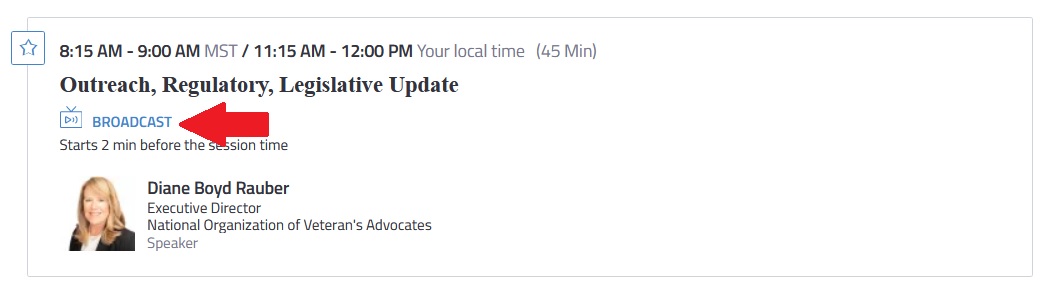
When you click the “Broadcast” button, you may be prompted to login in order to join the session. Please make sure to use the email with which you are registered for the conference to log in.
Once you click “Login” a new page will open asking for the email address used to register your ticket.
When a session ends click the “Back” button to return to the agenda. You can then enter the next session by clicking the “Broadcast” button for that session on the agenda.
All sessions will also be recorded and will be available to watch through the Agenda when available. The recordings will be available a few days after the last event date.
As a reminder, all session start times are local to Arizona. Arizona is in Mountain Time. Please remember that Arizona does NOT participate in daylight savings so at the time of the conference they are 3 hours behind the east coast.
HOW CAN I ASK QUESTIONS DURING A SESSION?
All sessions will include time for audience Q&A. To facilitate Q&A from both our in person and online audience, we will be using the conferences IO app.
Log in by clicking HERE then enter the app password: NOVA2022SC. Please watch this brief instructional video HERE to learn how to submit questions for Q&A.
IF I HAVE TROUBLE JOINING A SESSION, WHO SHOULD I CONTACT?
First, we recommend checking the instructions listed in Bizzabo’s Attendee Troubleshooting Guide. Also, NOVA has arranged for additional live chat support for our attendees on the mornings of Thursday, March 17, 2022, and Friday, March 18, 2022. If you have any problems logging in – chat support will be able to help you.
You can access the live tech support on hand each morning to assist with any issues through the live tech chat bubble on your screen.
WILL THE SESSIONS BE RECORDED?
Yes, the sessions will be recorded. All registrants will have access to the recordings following the event. We will notify you via email when the recordings are available.
HOW DO I SIGN IN FOR CLE?
Just like with an in-person conference, we need you to sign in to verify attendance for your CLE credits. We will have an attendance verification code assigned to each day, that every presenter will share during their presentations. Make sure to make a note of these as you will need them to complete the virtual sign in process.
Once you have your code, at any point throughout the day you can sign in. Navigate to the event website and find the “CLE Sign In” tab on the top menu:
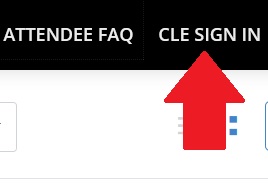
When you click on the sign in page, you’ll be brought to your sign in page where we ask that you enter your First Name, Last Name, email, and verification code. Please only sign in once for each day. Please do not sign in before you have the attendance verification code, your ticket number is NOT the verification code.
WHERE CAN I FIND THE CONFERENCE MATERIALS?
Conference materials have been emailed via Citrix Share File. You will receive an email that the National Organization of Veterans' Advocates has shared a folder with you to the email with which you registered. Click HERE for instructions on how to download.
*Please note: You MUST open the materials using an Adobe Acrobat reader to access any attachments such as exhibits or speaker bios via the paperclip tab.
Questions or concerns? Contact Katy Whalen with questions!
Attendee Troubleshooting Guide
What are the system requirements to join a session?
You can check if your system can use the Bizzabo Virtual Experience with our Quick Tech Check.
Please note, additional devices may successfully connect, but are not officially supported.
The sound is coming out of a different device than I want - what can I do?
To toggle between multiple outputs connected to your device (e.g. internal speakers, headphones and AirPlay), click the gear icon ⚙️on the top right of the live-streamed session. You will then be able to select which output and input devices should be used.
The output device I want to use isn't showing up - how can I fix this?
First, check the physical connection to your device, by either unplugging and re-connecting your physical headphones, or toggling bluetooth on and off.
If you are confident that the output device is connected correctly, check your system preferences to ensure your computer recognizes the device. On a Windows device, click the loudspeaker icon on the bottom right of your screen, and you'll be able to change output device. On a Mac, visit System Preferences > Sound to choose your output devices.
My devices are connected properly, but I can't hear anything!
If you're confident everything is connected properly, your devices might be being used by another tool or application. Make sure tools like Zoom, Google Hangouts, Go To Meeting etc. have been closed prior to starting the session.
I'm still experiencing issues - any final steps?
If you're still having issues, first send in your support logs by hitting the ⚙️in the top right, then "submit support logs" on the bottom left. Next try restarting your computer and trying again.